
File Versioning
1. Open Vault Explorer.
2. Select the file(s) to add a revision number.
3. Click the “Change Revision..” button on the ribbon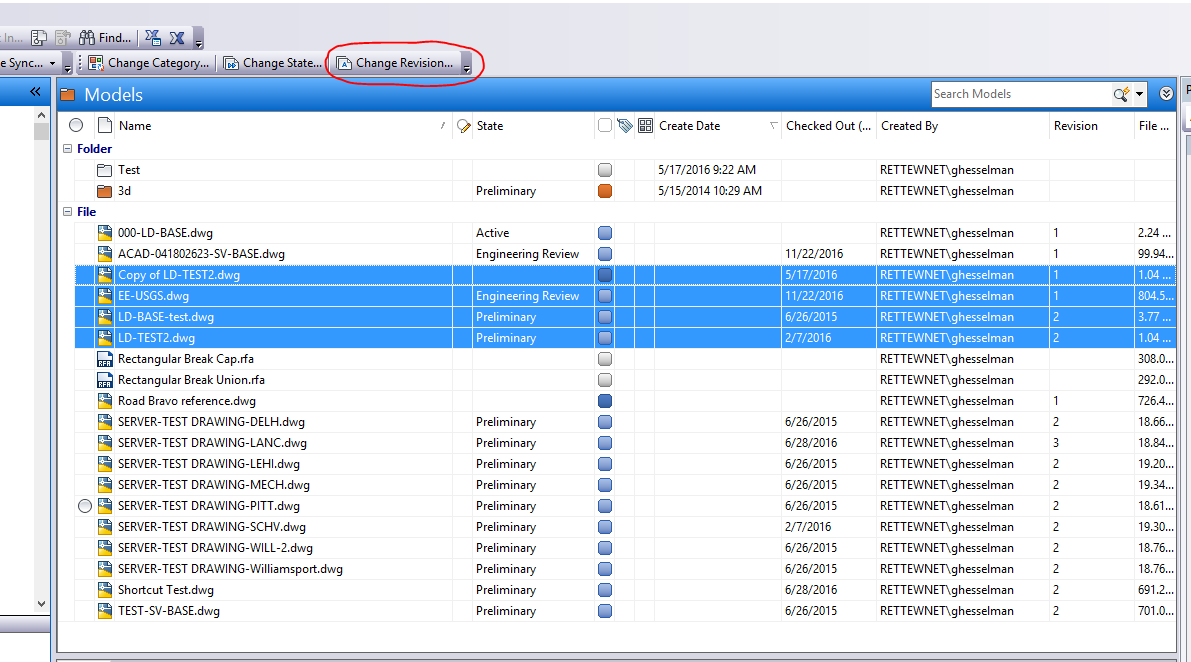
4. In the Change Revision dialog box, choose Primary in the dropdown, and enter a comment for the revision number.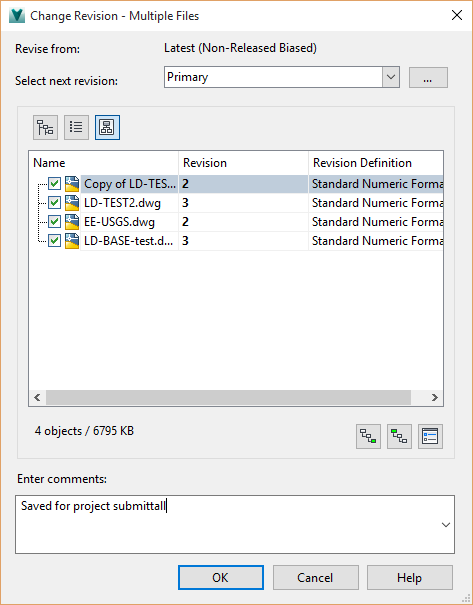
5. Select OK.
6. Under the history of each file added, the new revision comment will display.
Bring back an older version file.
- Open vault explorer
- Find the file you wish to bring back an older version.
- In the bottom panel, select the History tab for the file selected.
- Find the version you need of that file.
- Options you have
- Overwrite the current version with the older one.
- Under the history tab, right-click the version you want and select “Get...”
- Hit OK.
- You should see the red circular arrows next to the file.

- Right-click the file and do a Check Out.
- The older version is now checked out.
- Get just a copy of that version (do not disturb the current version).
- Under the history tab, right-click the version you want and select “Get...”
- In the “Get” dialog box, select the arrow button to the right of OK. This will expand out the dialog box.
- Select the bottom button that is a drop-down box, it is currently set to Working Folder.
- Select Browse...
- Select a location you wish to place the file. And hit OK.
- Select OK from the Get dialog box.
- The older version of that file will be downloaded to that location.
- Overwrite the current version with the older one.
Comments
0 comments
Please sign in to leave a comment.