
*This must be done in the office. It cannot be installed via VPN.*
1. Copy the installer from the server to your desktop – it is considerably faster loading locally.
a. The installer can be found here:
Z:\Shared\Service Areas\Information Technology and Facilities\Resources\Software Installs\Drivers\HP Plotter
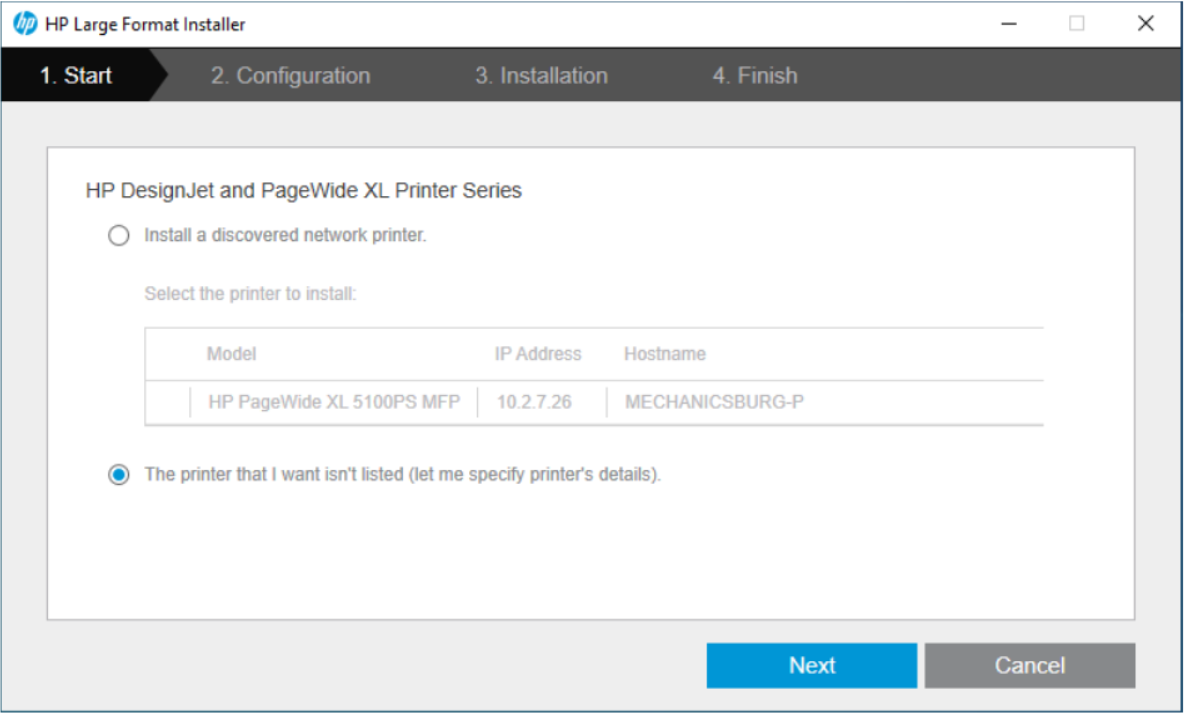
2. Double click HP_DesignJet_and_PageWide_XL_Installer.exe. Select The printer that I want . . .
and tag Next.
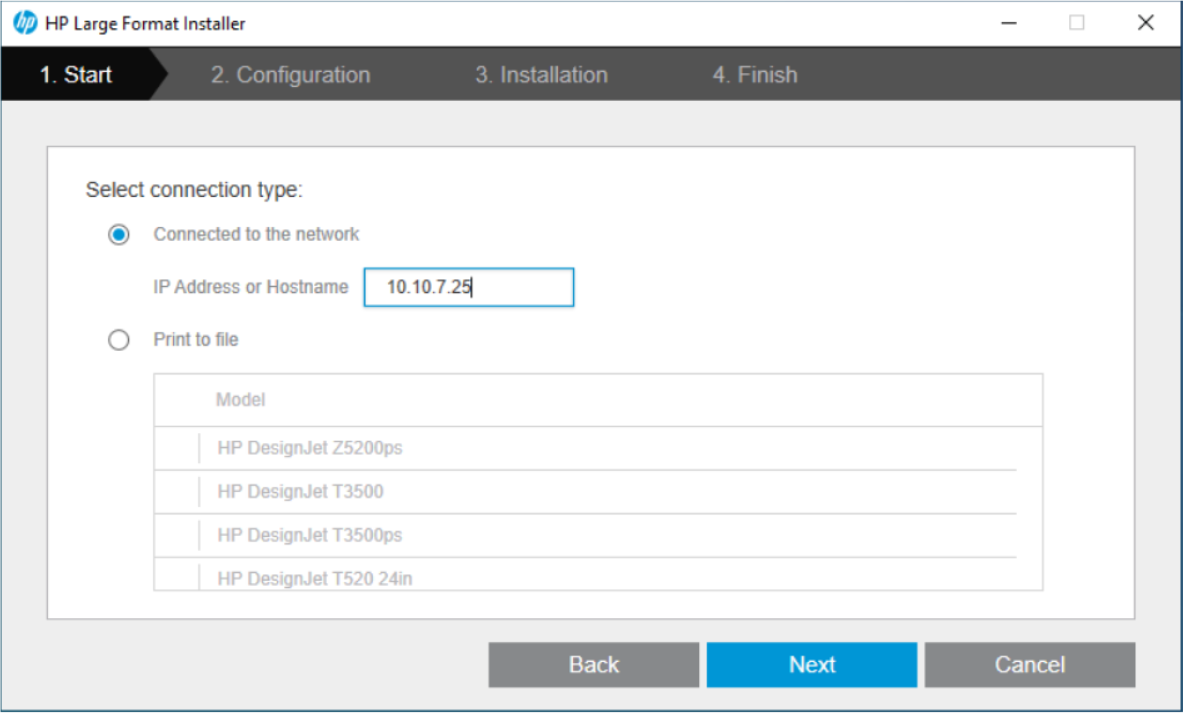
3. Select Connected to the Network, key in the IP address based on your office (see chart below), and tag Next.
| Office | IP Address |
| Canton | 10.14.7.53 |
| Lancaster | 10.1.7.36 |
| Lehigh Valley | 10.5.7.10 |
| Mechanicsburg | 10.2.7.26 |
| Pittsburgh | 10.10.7.25 |
| Williamsport |
10.9.7.25 |
| St. Clairsville | 10.6.7.11 |
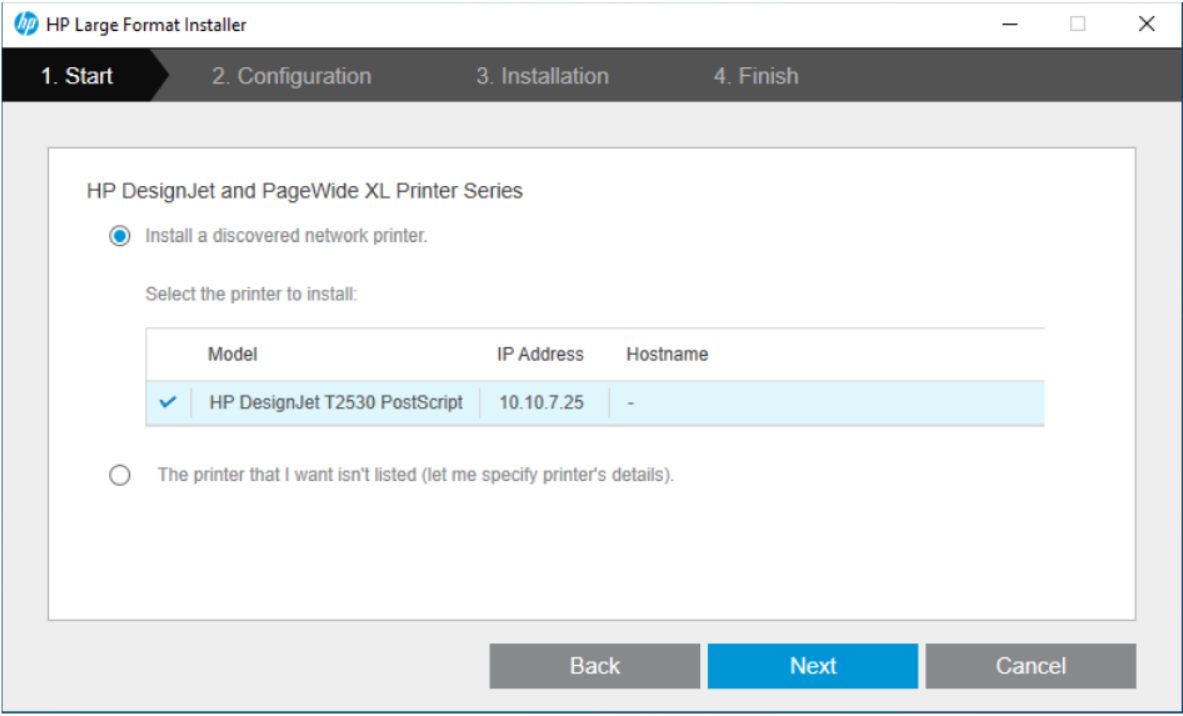
4. The HP installer should locate the plotter and present it within the dialog box as shown below.
Select Install a discovered network printer and tag Next.
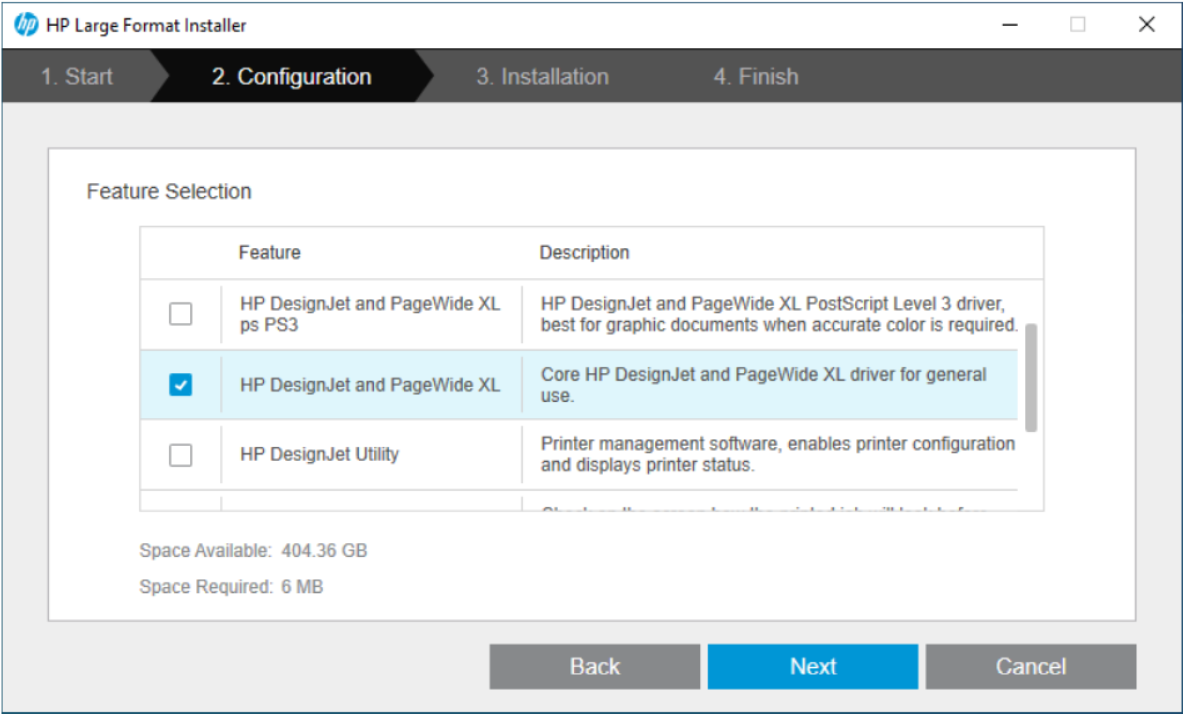
5. The dialog box Configuration page will be presented with a list of plotter drivers, viewers, utilities, etc. Scroll through the list and deselect all preselected options. Select only the HP DesignJet and
PageWide XL > Core HP DesignJet and PageWide XL driver for general use and then tag Next to
continue to the next dialog box page.
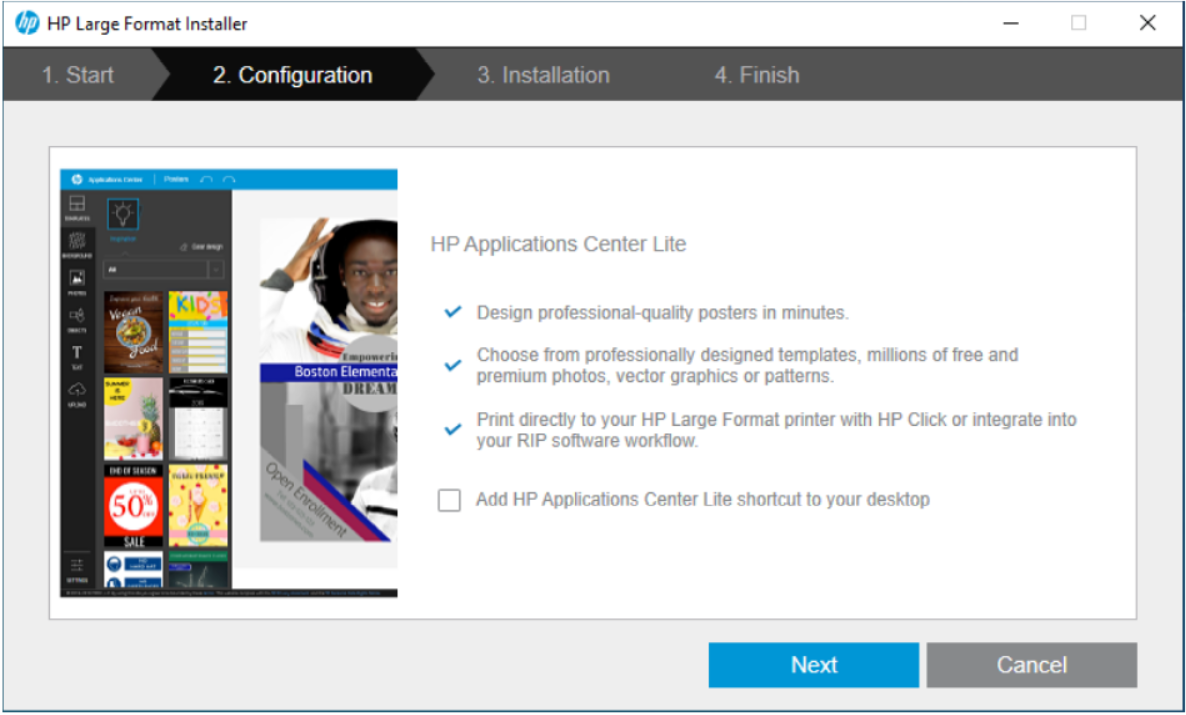
6. An additional dialog box will be presented with the option to install the HP Applications Center.
Deselect this option and tag Next to install the driver.
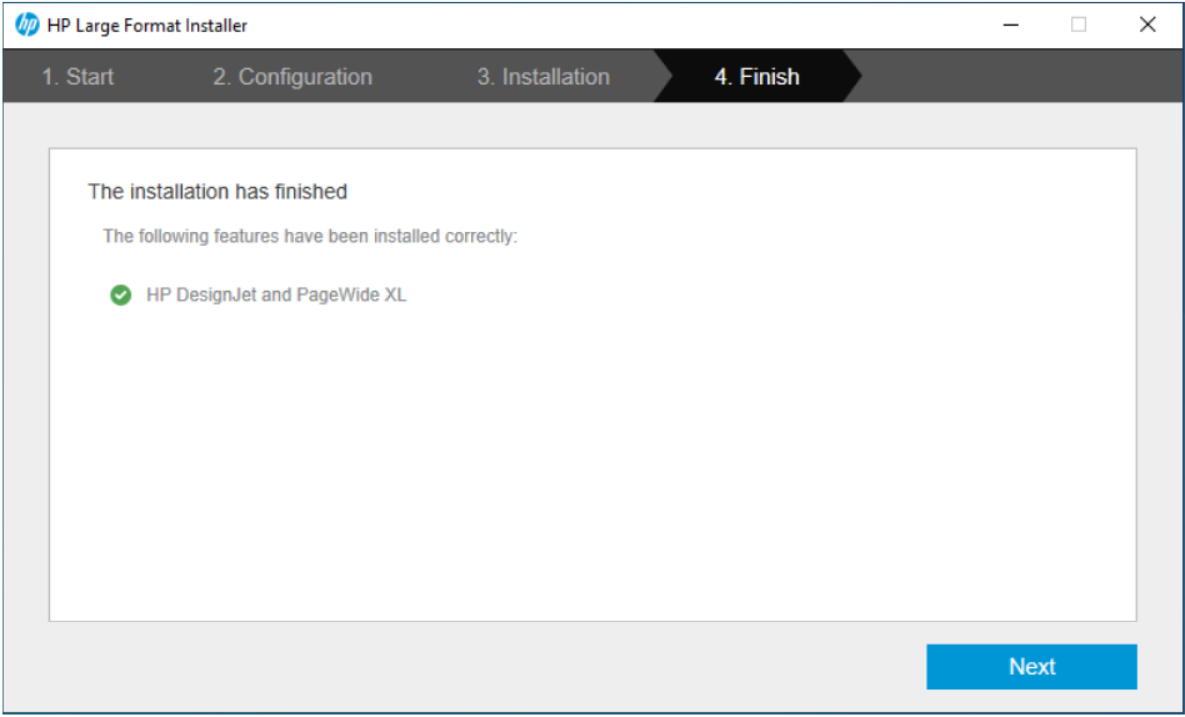
7. When driver installation is complete, the following dialog box will be displayed. Tag Next to
continue.
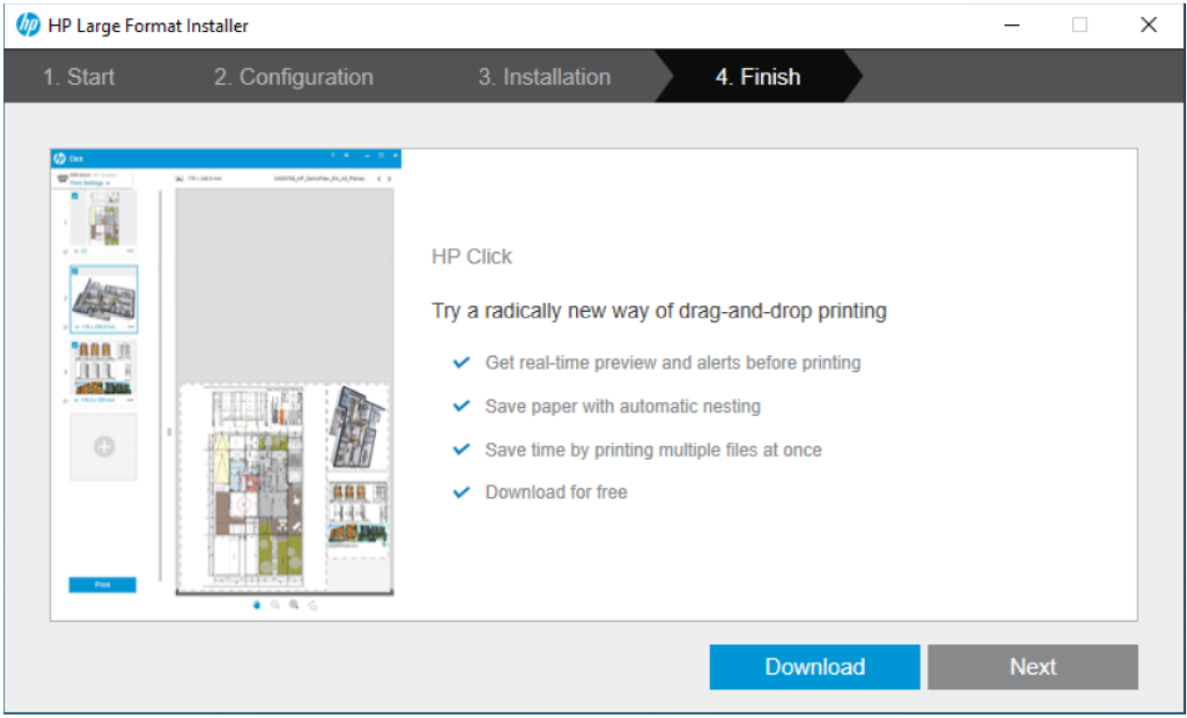
8. An advertisement for HP Click will be displayed. Again, simply tag Next to continue.
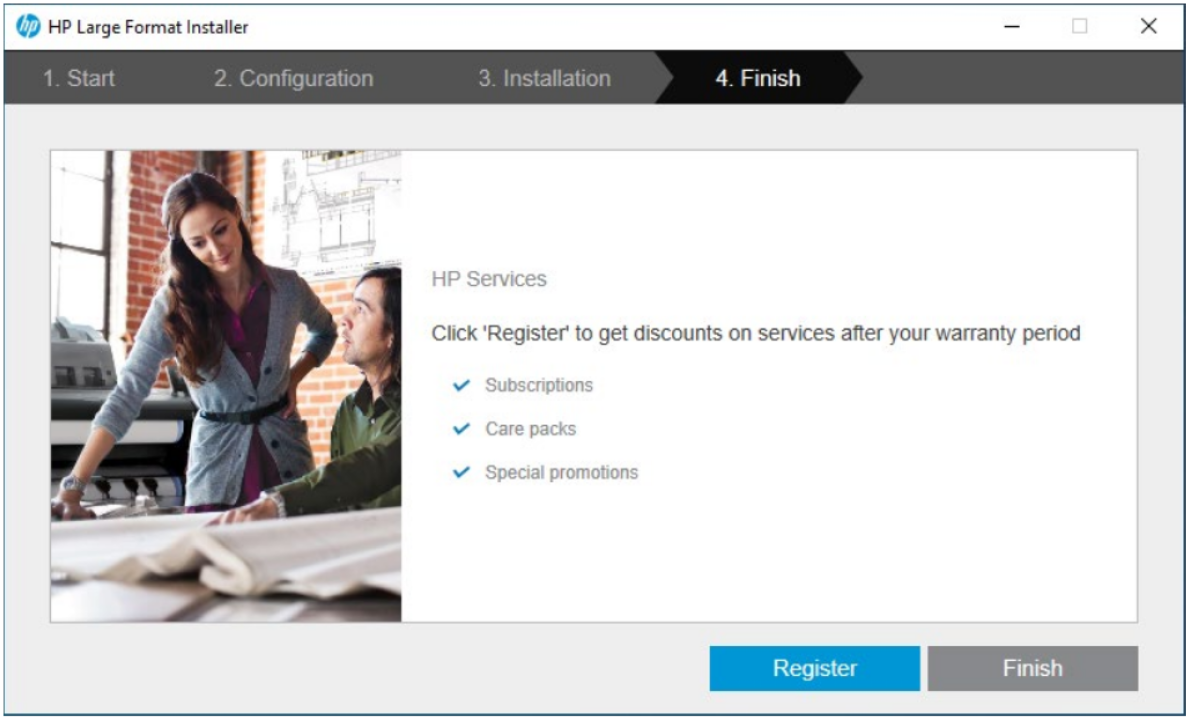
9. An option to register the plotter will be presented. Tag Finish to complete the installation and exit
the dialog box.
Comments
0 comments
Article is closed for comments.