
BST Mobile Access from Android or iPhone/iPad:
- Open your mobile web browser (Ensure Private Browsing is not enabled).
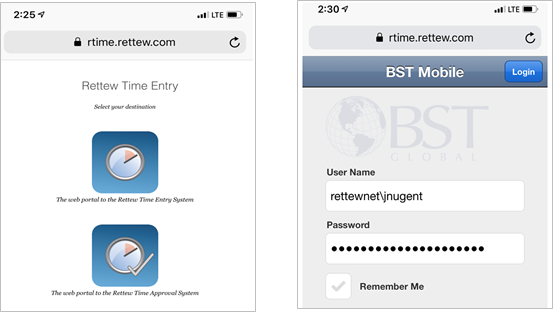
- Browse to https://rtime.rettew.com
- Select the first icon for Timesheet Entry, or the second icon for Timesheet Approval.
- Log in. Username must be in this format:
- Username: rettewnet\username
- Password: Your network password
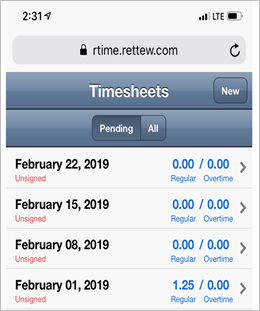
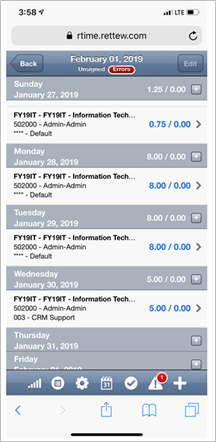
- Select the appropriate time sheet.
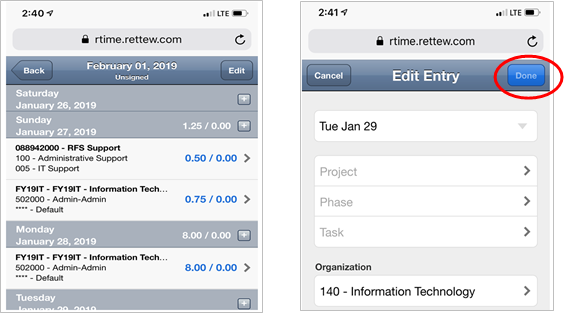
- Select an existing project to edit time or the + button to add a project.
- Choose the Project, Phase and Task for the project. Scroll down to complete all necessary fields.
- Click Done.
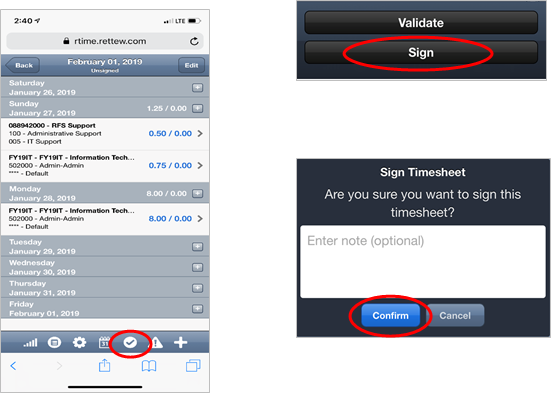
- Once your timesheet is complete, click the checkmark at the bottom of the screen.
- Click Sign and Confirm.
Tips/Tricks
- Links to BST mobile and full BST when outside of the office, can be found in the employee portal: https://www.rettew.com/employee-portal/
- Double check to be sure you are using the correct username format when logging in:
- Do not use your email address.
- Username: rettewnet\username (ex: rettewnet\jnugent or rettewnet\nick.seman)
- Prefill the projects you plan to work on for the week. Adding projects via the mobile site can be time consuming, however entering time is quick and easy.
- Mobile access supports timesheet entry and approval only. Use Full BST from your RETTEW Laptop for expense reports when outside of the office.
- Add a shortcut to your home screen for quick access to the mobile BST website.
- Ensure validation errors are corrected, otherwise you will not be able to sign the timesheet.
Comments
0 comments
Please sign in to leave a comment.