
1. Copy and paste the installer to your desktop and double click it to run.
The installer can be found here:
Z:\Shared\Service Areas\Information Technology and Facilities\Resources\Software Installs\Drivers\Xerox
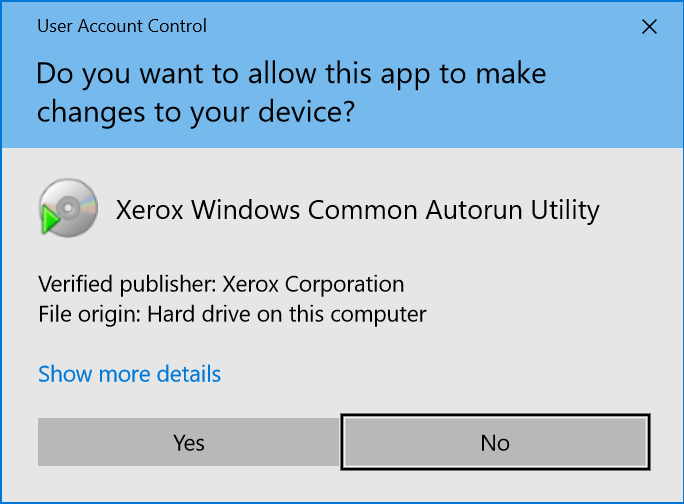
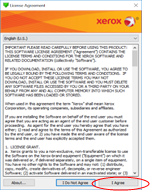
2. Click Yes to allow the app to make changes and click I agree on the License Agreement.
3. Select the printer/copier from the list and click Next.
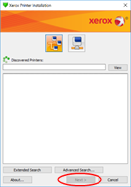
*Note* If your copier does not appear, or if you would like to add a printer from another office click on the button below and then enter in the IP address for the copier you wish to add from the list below and click Search.
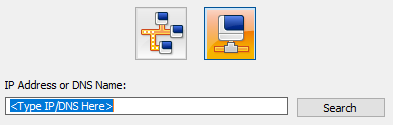
| Office (Location) |
IP Address |
| Canton | 10.14.7.42 |
| Conshohocken | 10.12.7.1 |
| Lancaster (B2F1) | 10.1.7.70 |
| Lancaster (B2F2 FS) | 10.1.7.75 |
| Lancaster (B2F3 LD) | 10.1.7.74 |
| Lancaster (B2F3 Print Room) | 10.1.7.73 |
| Lehigh Valley | 10.5.7.7 |
| Mechanicsburg (Print Room) | 10.2.7.14 |
| Mechanicsburg (Front Desk) | 10.2.7.13 |
| St. Clairsville | 10.6.7.10 |
| State College | 10.8.7.1 |
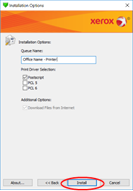
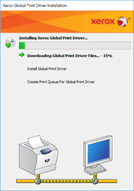
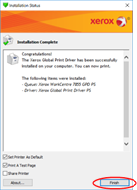
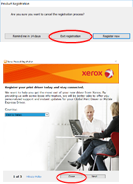
4. Name the copier in the format of: Office name – Copier, ensure only the Postscript box is checked and click Next. Once installation is complete, click Finish. If asked to register, click Exit Registration, then Close.
Comments
0 comments
Article is closed for comments.