
All the drawing templates will be located in Vault. This will make sure all CAD staff will have the latest template files. To get the latest templates and to be used, follow the instructions outlined below.
1. Open Vault Explorer, find the “Templates” folder and select template(s) you wish to load.
2. Right click file or folder and select “Get/Checkout”.
3. In the Get / Checkout dialog box, choose OK, since you do not need to checkout the file(s) you do not need to do any action at this point. Once selected, Vault will download the selected
file(s) to your local WIP folder.
At this time you can manually select the local templates from your “_RETTEWVaultWIP” folder, or you can setup your CAD to default to that folder every time you create a new file. The steps below will show how you set up the default template folder.
1. Open Civil 3D, type OPTIONS in command line.
2. Under Options, select the Files Tab, and expand Template Settings, then expand Drawing
Template File Location.
3. Select the current file path, and then select the Browse button.
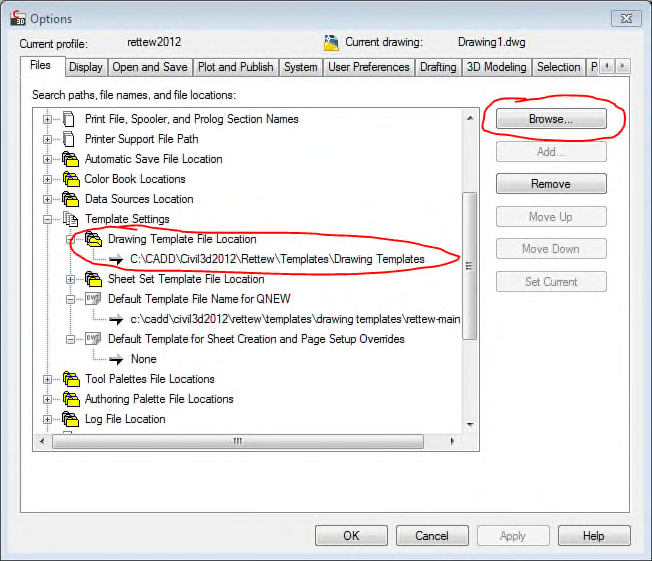
4. Browse to this path “C:\_RettewVaultWIP\Templates.
5. Hit OK to close the options dialog box.
6. When you create a new drawing it will default to this location.
NOTES:
- To ensure you have the latest template, check Vault Explorer if the template you wish to use has been updated. You can do this by checking the date it was last checked in. If you verify that you have the latest template locally, you do not need to get it from Vault.
RETTEW-CAD-Templates from Vault.docx - If a template update has occurred, there will be an email sent to CAD staff detailing what has been updated.
Comments
0 comments
Please sign in to leave a comment.